

If you’re starting an online store, learning how to add products in Shopify is the most important step. Your products are what customers see, search, and buy. A properly added product can increase conversions, improve search rankings, and make your store look professional.
In this guide, you’ll learn step-by-step how to add products on Shopify, including images, pricing, inventory, variants, shipping, and SEO.
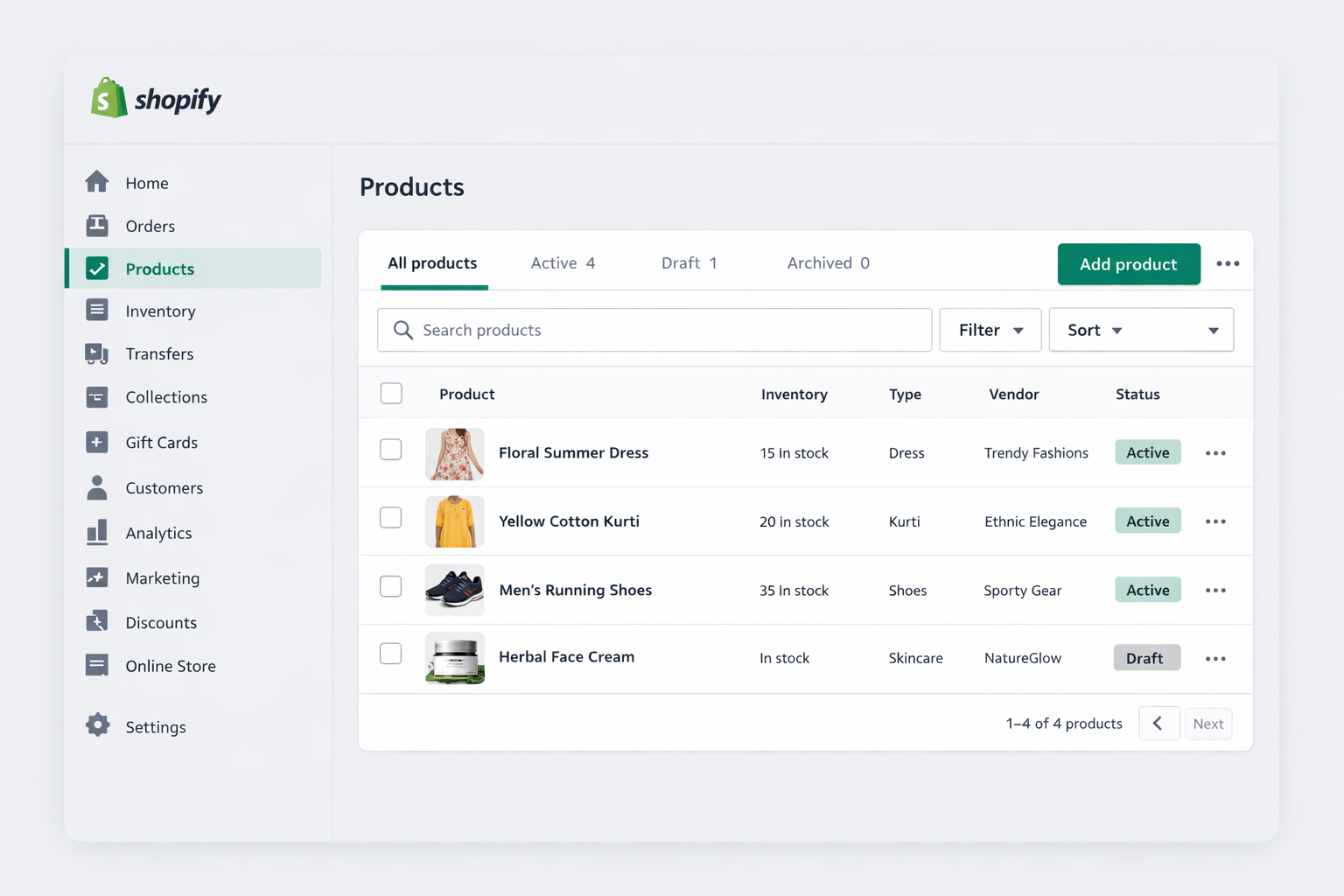
Step 1: Go to the Products Section
Log in to your Shopify dashboard
➡ Click Products from the left menu
➡ Click Add Product
Every physical, digital, or service product must be created here.
Step 2: Write a Strong Product Title
Your Shopify product title should clearly explain:
✔ What the product is
✔ Who it is for
✔ Key feature
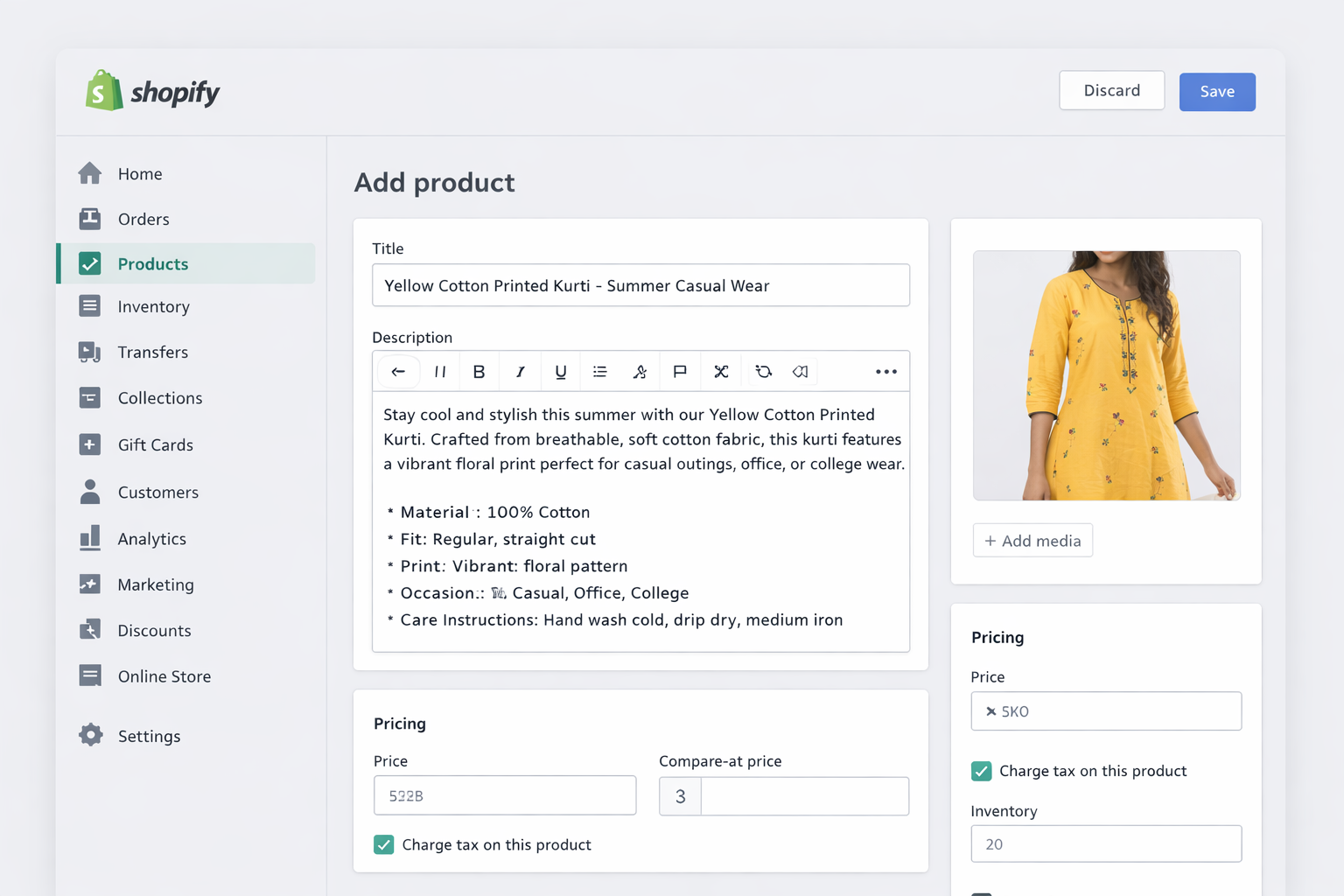
Example: Women’s Cotton Printed Kurti – Summer Casual Wear
This improves:
-
Customer clarity
-
SEO rankings
-
Ad performance
Step 3: Add a High-Converting Product Description
Your Shopify product description should sell, not just describe.
Use this structure:
-
Problem it solves
-
Features
-
Benefits
-
Who should buy
-
Care instructions
Step 4: Upload Product Images
Images are the #1 factor in online sales.
Best practices:
✔ White/clean background
✔ Front view, back view, close-up
✔ Lifestyle/model photo
✔ Minimum 4 images
✔ Use 2000×2000px square images

Step 5: Set Product Pricing
Add:
-
Price = Selling price
-
Compare at price = Original price (shows discount)
Example: ₹799 (Compare at ₹1199)
This displays a discount badge automatically.
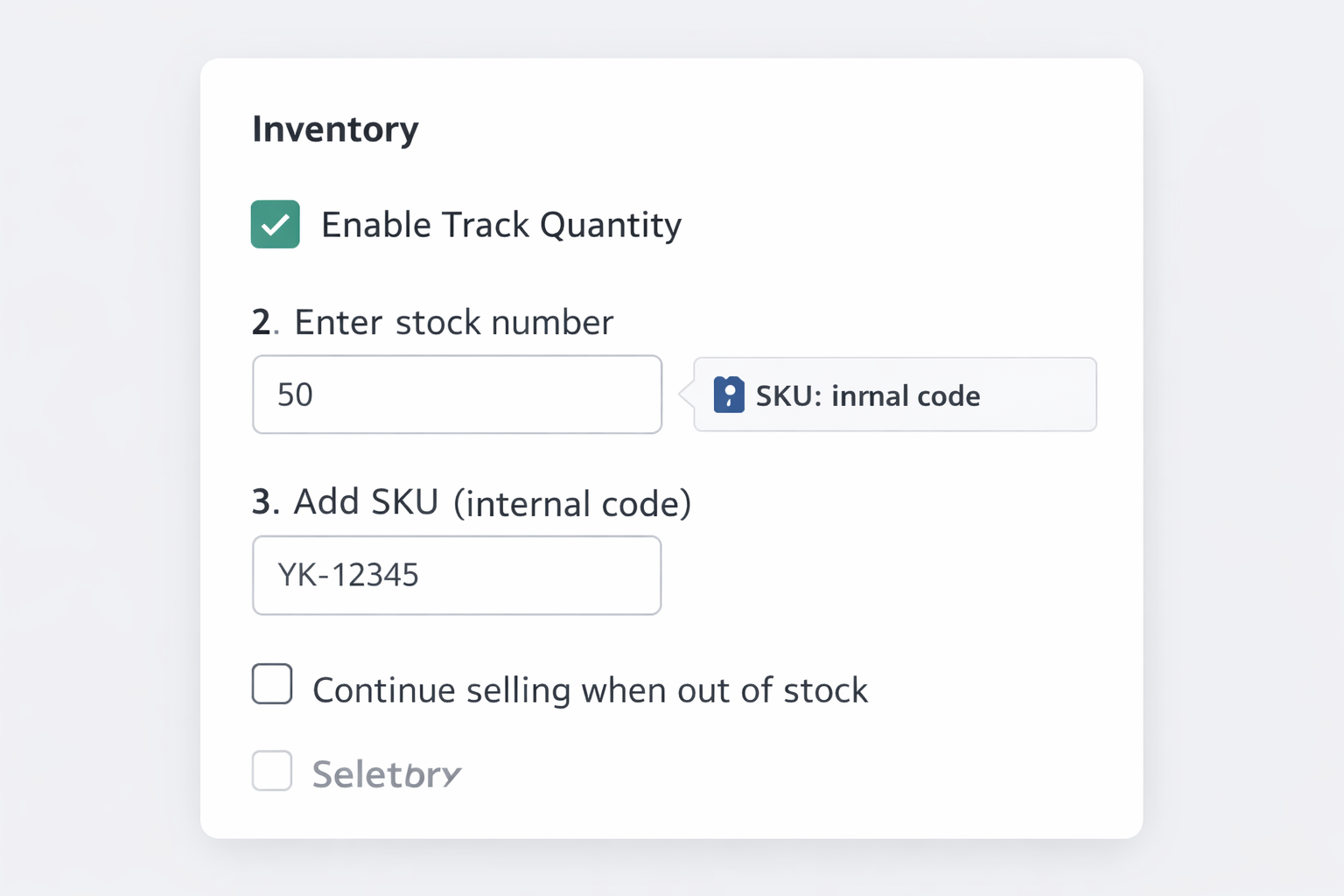
Step 6: Configure Inventory
✔ Enable Track Quantity
✔ Enter stock number
✔ Add SKU (internal code)
Step 7: Shipping Settings
If selling a physical product:
✔ Keep shipping checked
✔ Add weight
✔ Add country of origin
✔ Add HS code (for international shipping)
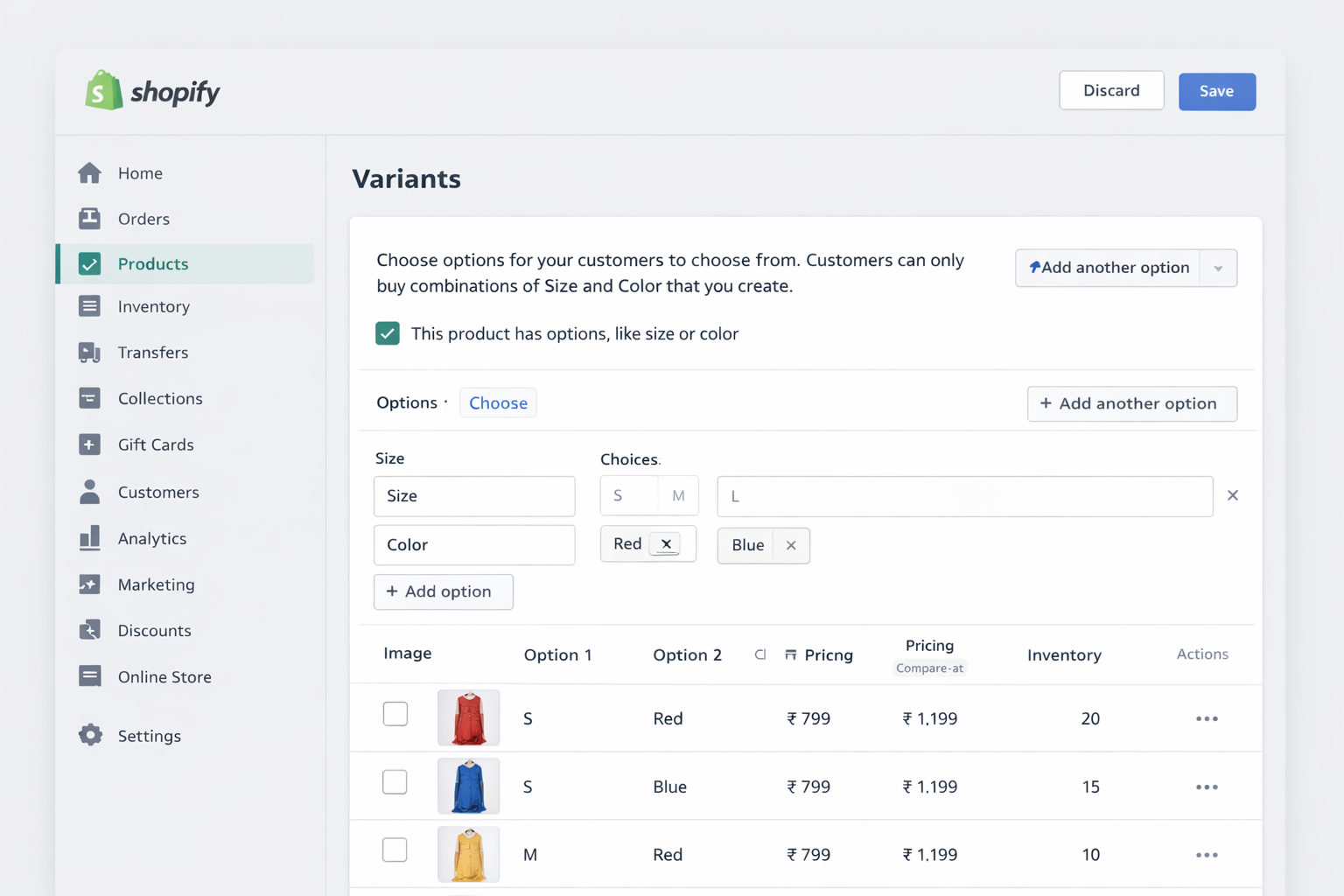
Step 8: Add Variants (Size, Color, etc.)
Variants allow multiple options.
Example:
-
Size: S, M, L
-
Color: Red, Blue
Each variant can have different price, stock, and image.
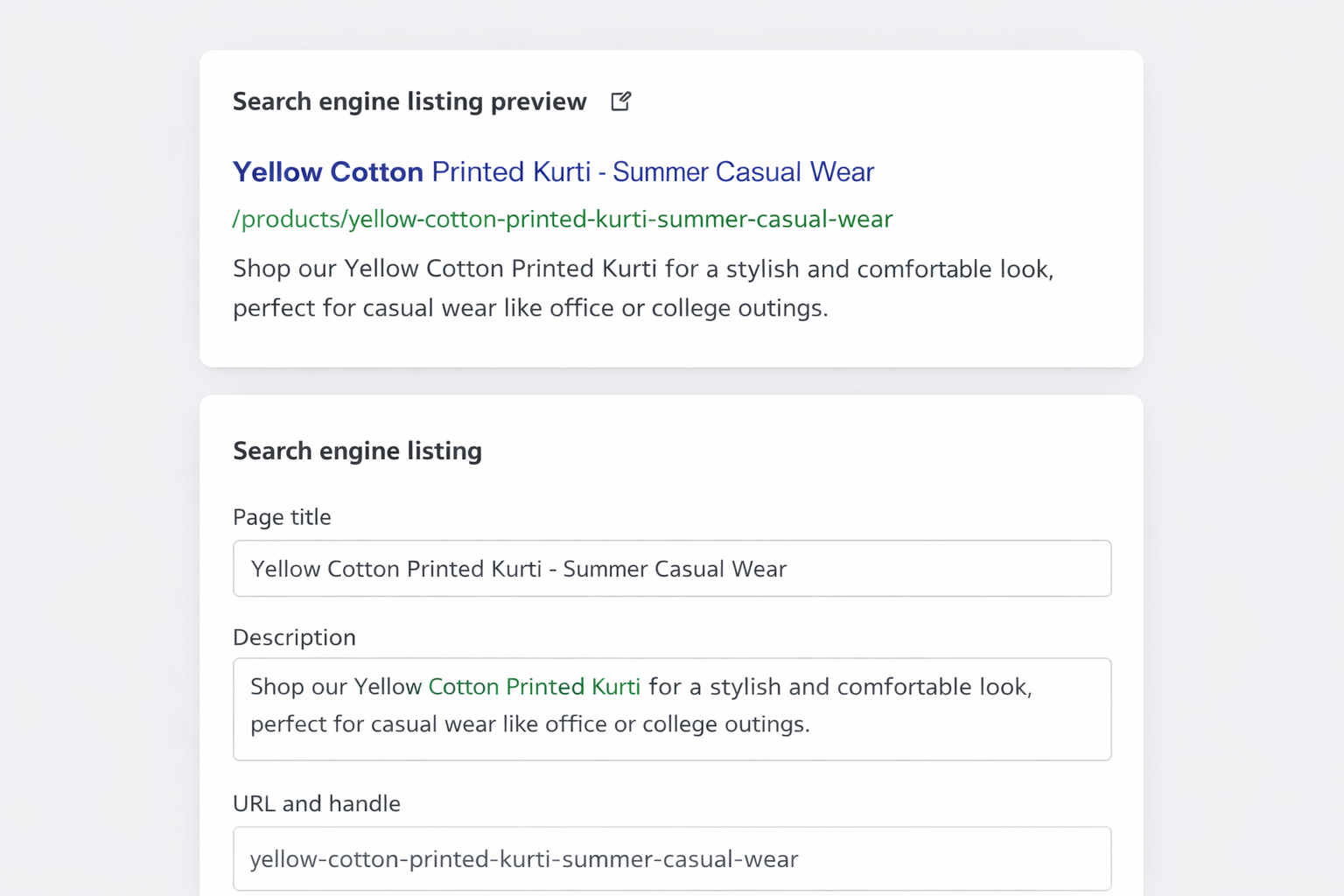
Step 9: Optimize Search Engine Listing (SEO)
Click Edit Website SEO
Add:
Page Title: Buy Cotton Printed Kurti Online in India
Meta Description: Shop high-quality cotton printed kurtis for daily wear, office, and college. Stylish, comfortable designs with fast delivery across India.
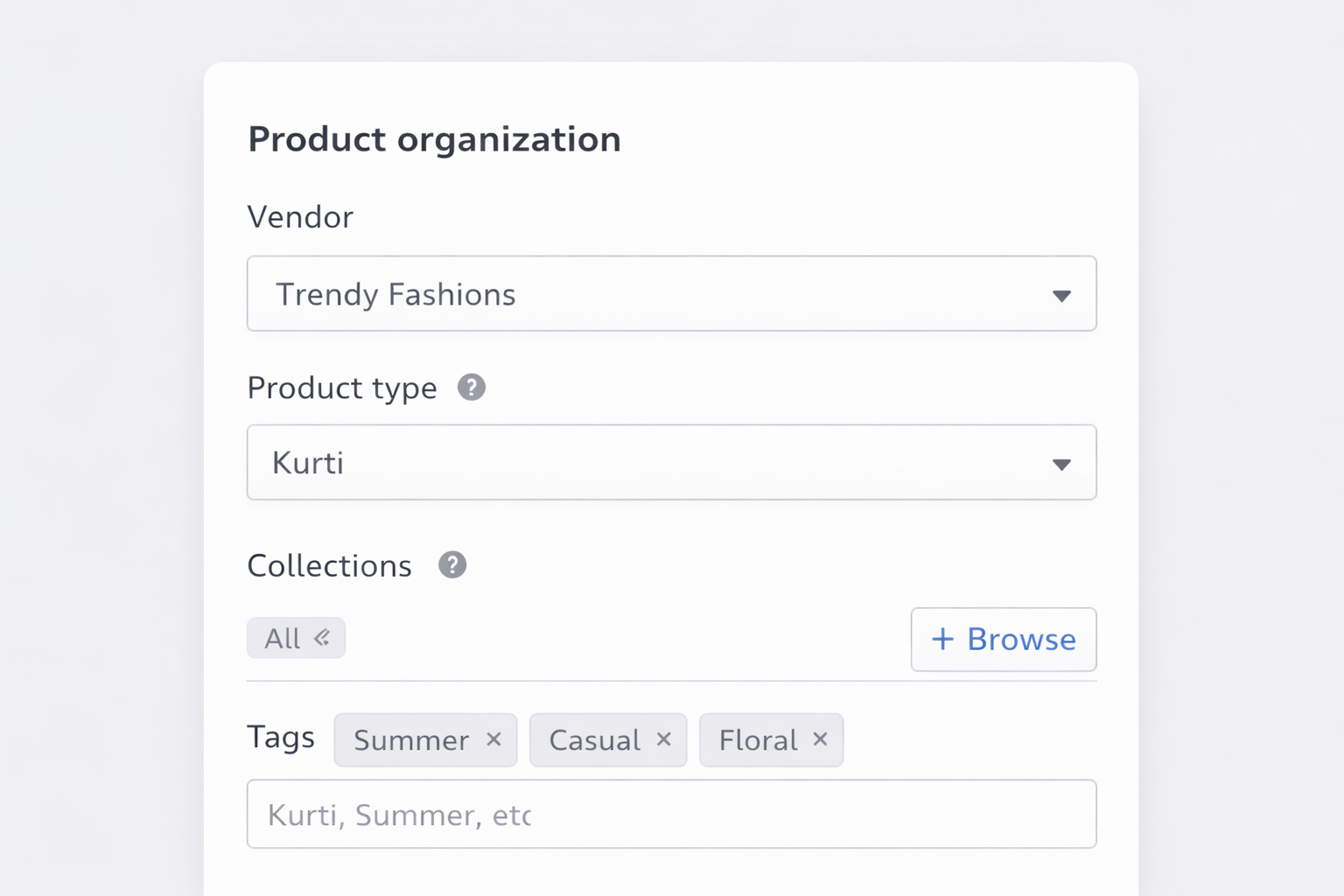
Step 10: Product Organization
Use:
-
Vendor = Brand name
-
Product Type = Category
-
Collections = Where product shows
-
Tags = For filters
This helps customers find products easily.
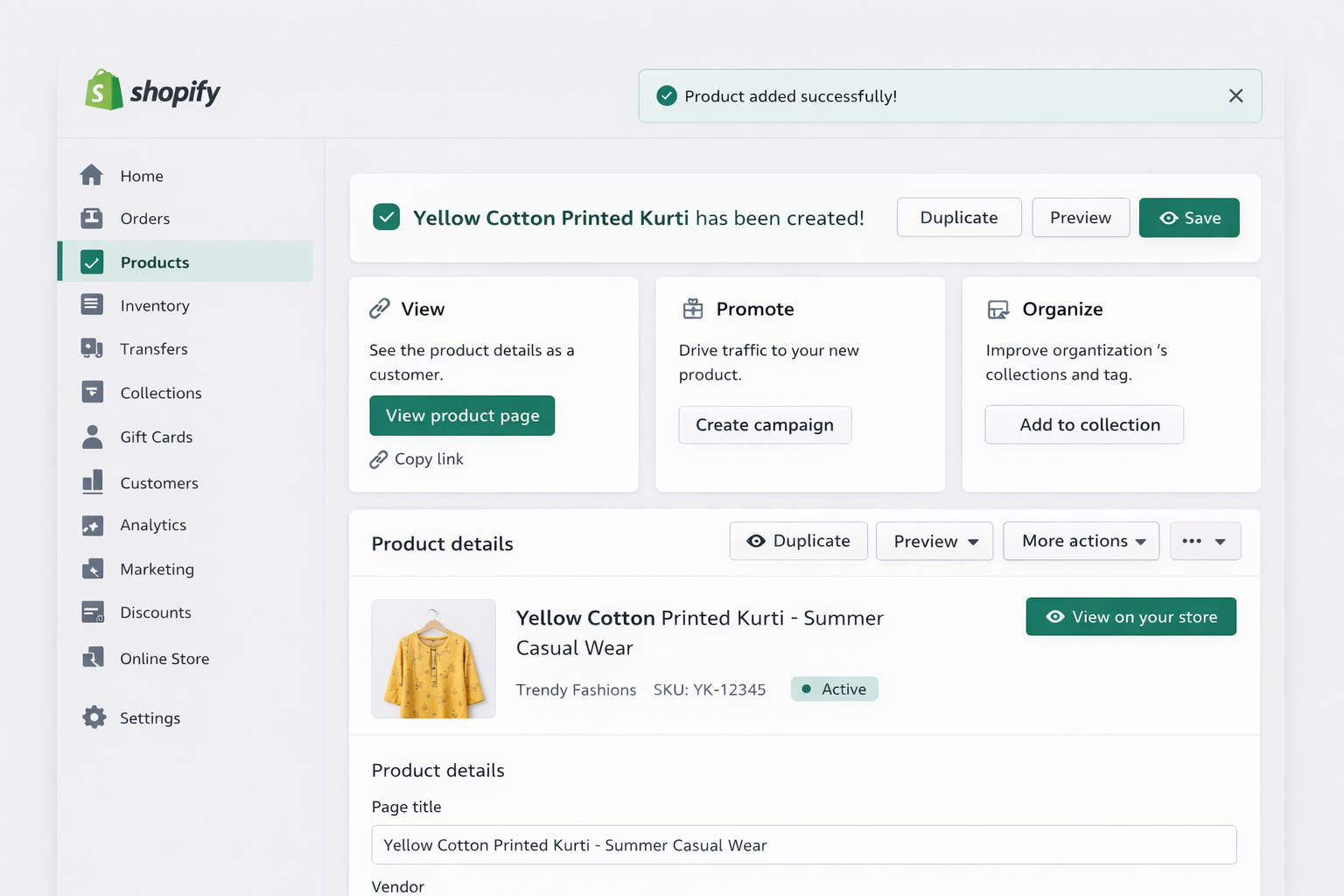
Step 11: Set Product Status
At the bottom:
-
Draft → Not visible
-
Active → Live on store
Common Mistakes to Avoid
❌ Only one image
❌ No description
❌ Wrong pricing
❌ Not tracking stock
❌ No variants
❌ No SEO title/meta description
Final Thoughts
Now you know exactly how to add products in Shopify the right way. A well-optimized product page improves trust, SEO, and conversions.
If you want your Shopify store professionally designed for better sales, you can contact me for Shopify website design and optimization services.